Do you use the correct HTML input type?
Loading last updated info...
HTML 5 introduced a whole slew of new type properties for forms. Gone are the days of just using type="text" for every field in a form (barring buttons and checkboxes).
Although most of these don't do anything on desktop, on mobile devices they bring up the correct keyboard. As we move into a more mobile digital age, small things like the proper numerical keyboard or a keyboard with a quick ".com" becomes increasingly important.
<label for="phone">Phone</label>:<input type="text" name="phone" />
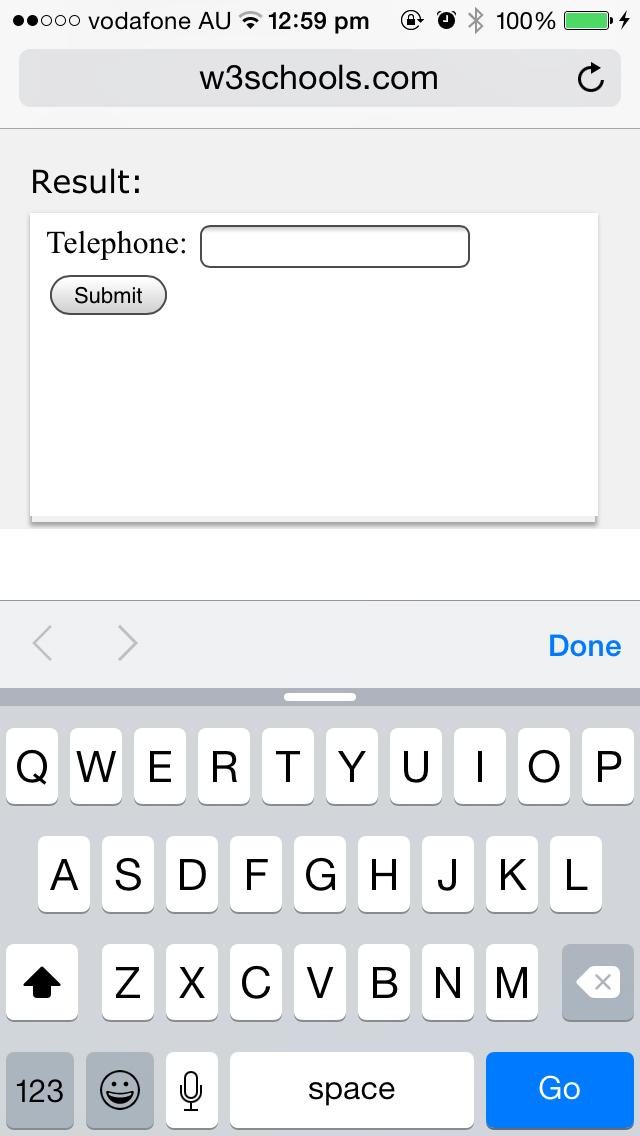
❌ Figure: Bad example - This field is using a "text" type and shows a standard keyboard on mobile
<label for="phone">Phone</label>:<input type="tel" name="phone" />
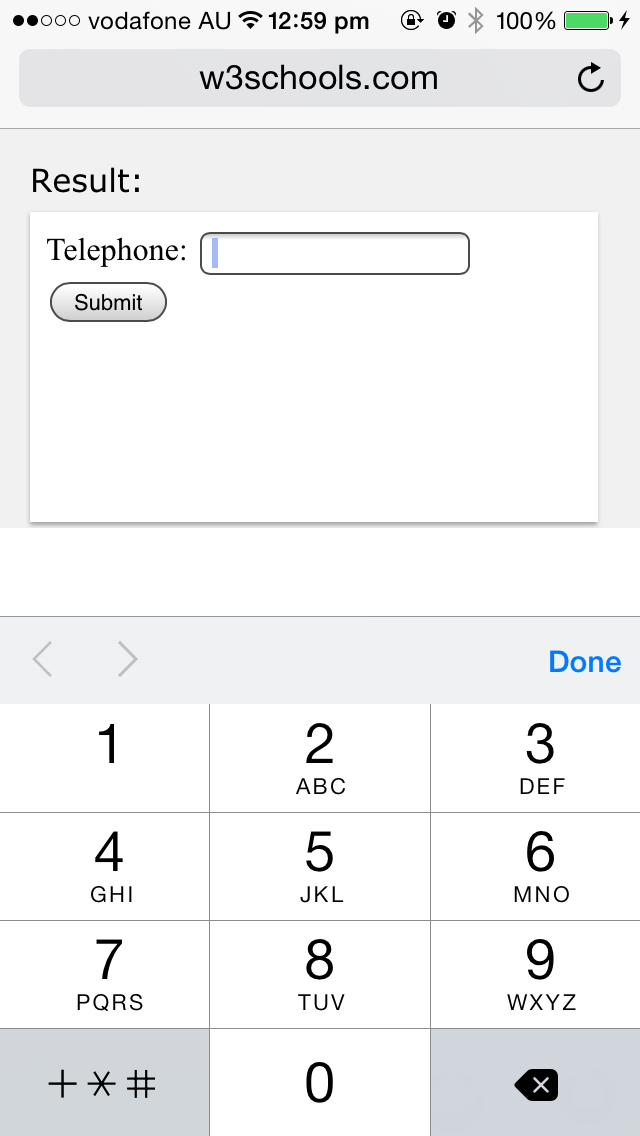
✅ Figure: Good example - This field is using the correct field type and shows the keypad on mobile
What are the HTML input types
Here’s a table of common HTML input types and what they do:
| Input Type | What it does |
| text | Standard single-line text input |
| Validates that the input is a properly formatted email address | |
| password | Masks the entered text for privacy |
| number | Allows only numeric input and shows increment controls |
| tel | Optimized for phone numbers (mobile keyboards adapt) |
| url | Validates that the input is a properly formatted URL |
| search | Styled for search fields and may include clear functionality |
| date | Provides a date picker for selecting a date |
| time | Allows users to select a time |
| datetime-local | Lets users pick both date and time (no timezone) |
| checkbox | Allows selection of one or more options |
| radio | Allows selection of a single option from a group |
| file | Lets users upload files |
| range | Displays a slider for selecting a value within a range |
| color | Opens a color picker |
| hidden | Stores data without displaying it to the user |
| submit | Submits the form |
| reset | Resets all form fields to their default values |
| button | A generic clickable button with no default behavior |